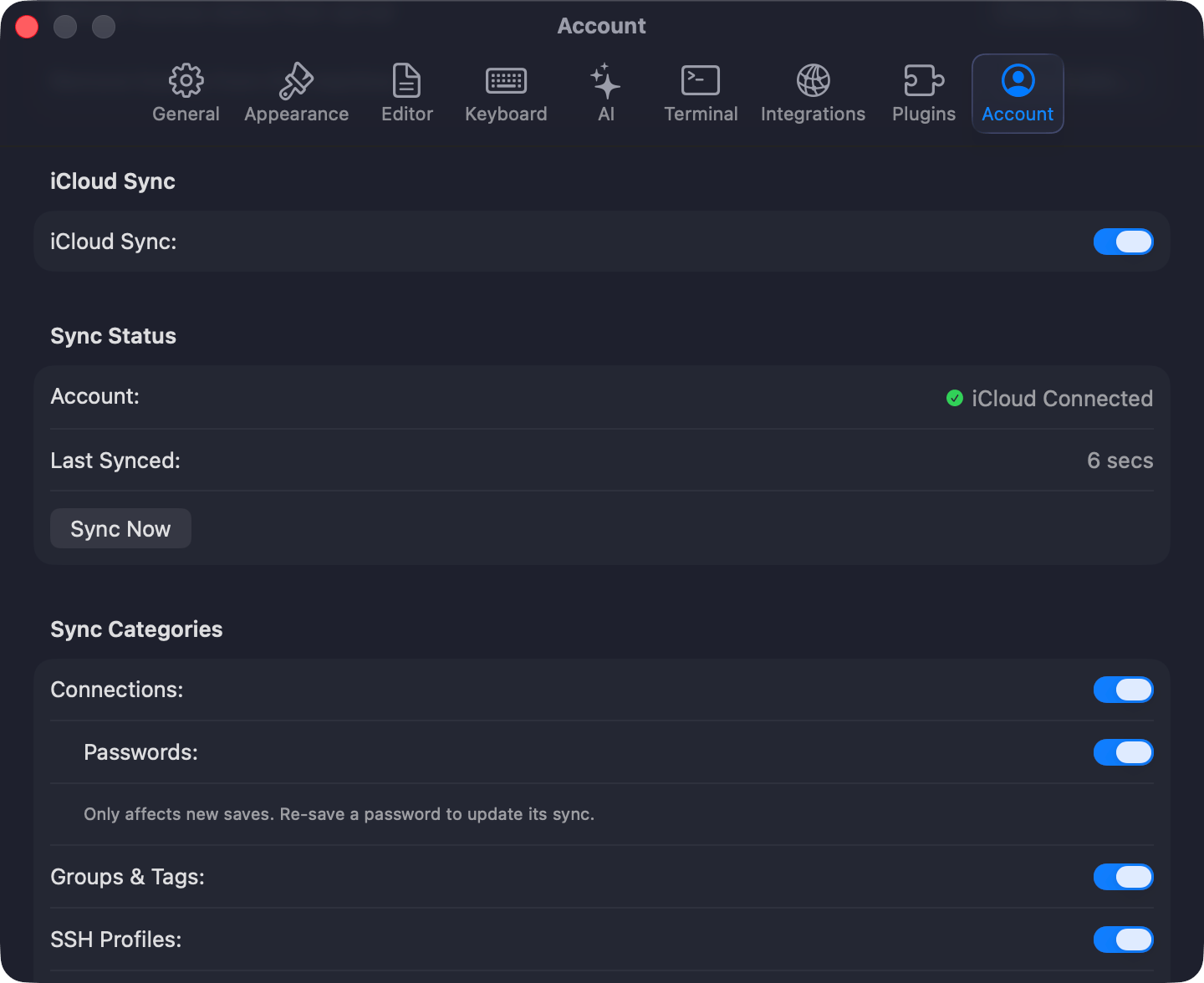

Sync needs a Starter or Team license and starts off. Press Cmd+,, open Settings > Sync, turn on Sync this Mac with iCloud, pick the categories, and click Sync Now. The iPhone and iPad app shares the same CloudKit data but carries connections, groups, and tags only.
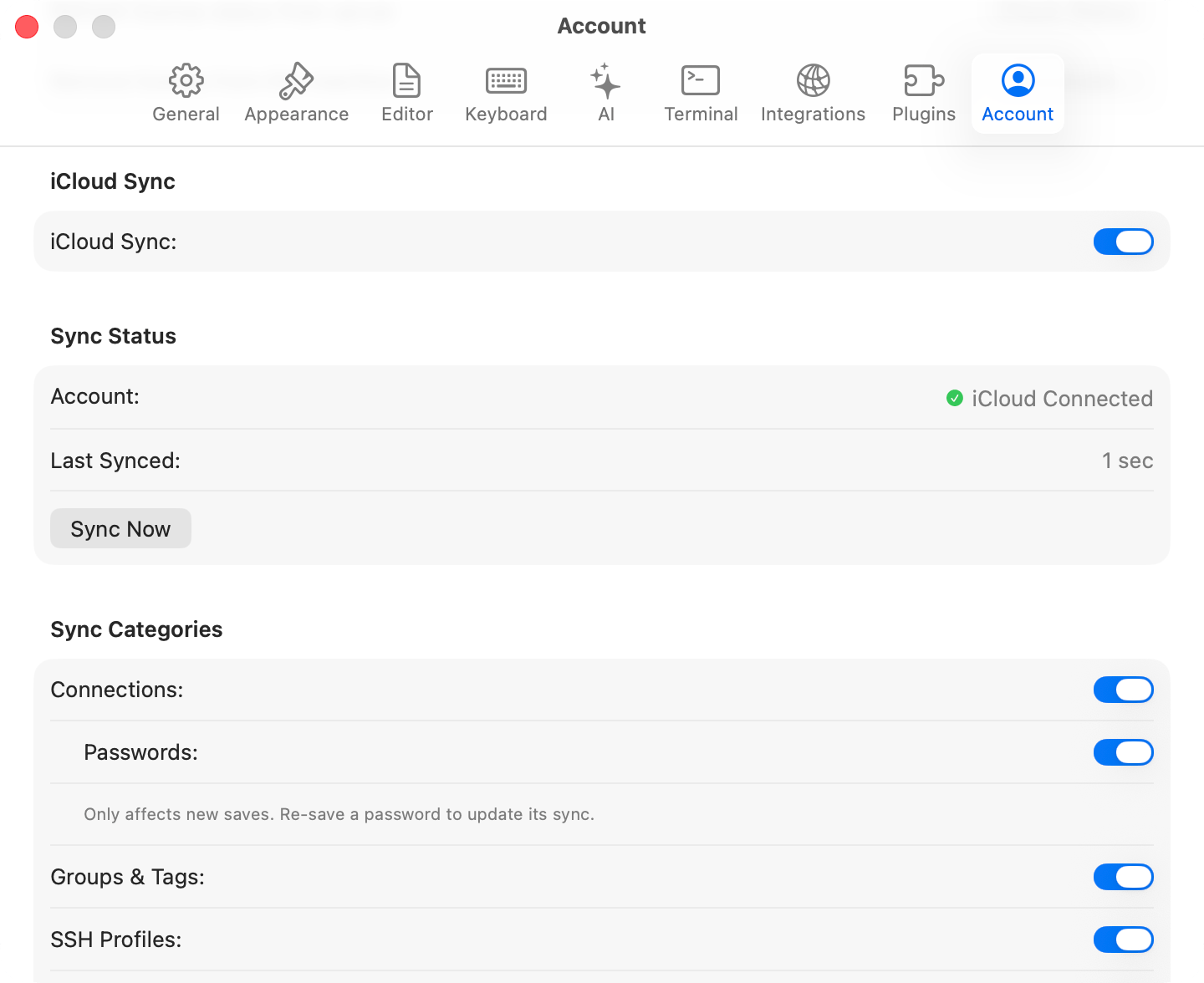
iCloud Sync settingsiCloud Sync settings

iCloud Sync settings

What syncs

Each synced category has its own toggle under Sync Categories. A sync runs at launch, when you switch back to the app, 2 seconds after you change anything synced, and when the network returns after a sync that could not reach iCloud.

Keeping a connection off iCloud

A localhost or throwaway database is rarely worth a round trip. Mark it Local only under iCloud Sync on the connection form’s Options tab, or right-click it and choose Exclude from iCloud Sync. It shows a struck-through cloud icon in the connection list, and the flag survives duplicating and exporting. What belongs to the connection stays on this Mac with it: its table and database favorites, the saved queries and folders scoped to it, and its column widths, order, and hidden columns. Edits and removals you make to them wait here while the connection is Local only, and the first sync after you turn it off sends them. Deleting a Local only connection removes those items from this Mac and from nowhere else.

Checking that it worked

Status in the Sync Status section reads Up to Date after a clean run. Last Synced is the last run that both sent this Mac’s changes and brought the other devices’ in, so it stops moving while uploads fail even though downloads keep arriving. When the same connection changed on two devices, TablePro merges field by field, so a name edited on one Mac and a port edited on the other both survive. When one field changed in both places, the device that syncs last wins.

Troubleshooting

A condition that a retry cannot clear shows as a notice at the top of Settings > Sync, with the action that clears it. While it lasts, edits stop going up on every change: they wait on this Mac, and nothing local is deleted. The welcome window’s sync indicator names the same condition and opens the pane when clicked.

iCloud Storage Is Full

Every upload fails, deletions included, until iCloud has room. Changes from your other devices still arrive. Click Manage Storage…, or open System Settings, click your name, then click iCloud, and free up space or add storage. The upload is tried again after 5 minutes, then twice as long each time up to an hour; click Sync Now to try at once.

Not Signed In to iCloud

No Apple Account is signed in to iCloud on this Mac. Click Open System Settings… and sign in. Sync starts by itself once you do.

iCloud Is Not Ready

The account is signed in, but iCloud is not ready for apps yet, which happens briefly after signing in. Sync resumes by itself. If the notice stays, look in System Settings > Apple Account for a prompt to confirm your password.

iCloud Is Restricted

Screen Time or a device management profile does not allow iCloud on this Mac. Sync stays off until whoever manages the Mac lifts the restriction.

TablePro Data Was Removed from iCloud

TablePro’s data is no longer in iCloud, most often because it was deleted under Manage Storage. Nothing uploads until you choose: Upload Again sends everything on this Mac back up, and Turn Off Sync keeps it on this Mac only. If another device uploads first, this Mac picks that up and syncs normally again.

Update Required

iCloud no longer accepts this version of TablePro. Click Check for Updates… and install the update.

Offline

iCloud could not be reached. Changes go up as soon as the network returns, without a click.

Waiting to Retry

iCloud asked TablePro to slow down. The next attempt waits for the time iCloud named, and at least 30 seconds.

Some Changes Not Uploaded

iCloud refused the changes counted under Sync Now and accepted the rest. The refused ones stay on this Mac and go again on the next sync.

Other cases

Signing in to a different iCloud account starts sync over for that account: the next sync is a full fetch rather than a delta, and changes waiting on this Mac go to the new account. Expect the first sync to take longer. When a license expires, sync stops and local data stays where it is. Re-activate to resume. A license TablePro has not been able to check for 30 days pauses sync separately, under Sync Paused rather than Sync Off. Click the indicator, or Check Again in Settings > Sync, to try the server again. Local data stays where it is either way.