

_id all open read-only; Change Tracking covers which results are writable. PHP serialized values, and binary past the hex cap, are read-only for everyone.
Display as formats
Right-click a column header and pick Display As. The submenu lists the formats that fit the column type, with a checkmark on the active one.
An override persists per column, scoped to the connection and table. A column with a format set copies in that format when you copy the single cell; a block of cells or a whole row always copies the stored value.
Id-like binary and character columns, integer columns whose names read as timestamps, and binary columns whose first rows all read as UTF-8 pick up their format on their own. Smart value detection in Settings > Data turns that off, and a manual choice always wins over it, Raw Value included. MongoDB binary columns never offer UUID, since the driver decodes them under its own Legacy UUID Encoding setting; see MongoDB.
Text decides per cell, not per column: an image or a hash sitting in a column set to Text still reads as
0x89504E…. The cell edits as hex either way.
JSON viewer
A JSON-typed column opens on the chevron; double-click orEnter edits it inline instead. A text column holding JSON needs Display As > JSON first.
The popover has two modes. Text is syntax-highlighted and pretty-printed, and editable when the cell is. Tree is a collapsible outline with a search field. It never edits, but its rows and the text in them select and copy. Both keep your key order and exact number values, integers larger than JavaScript can represent included.
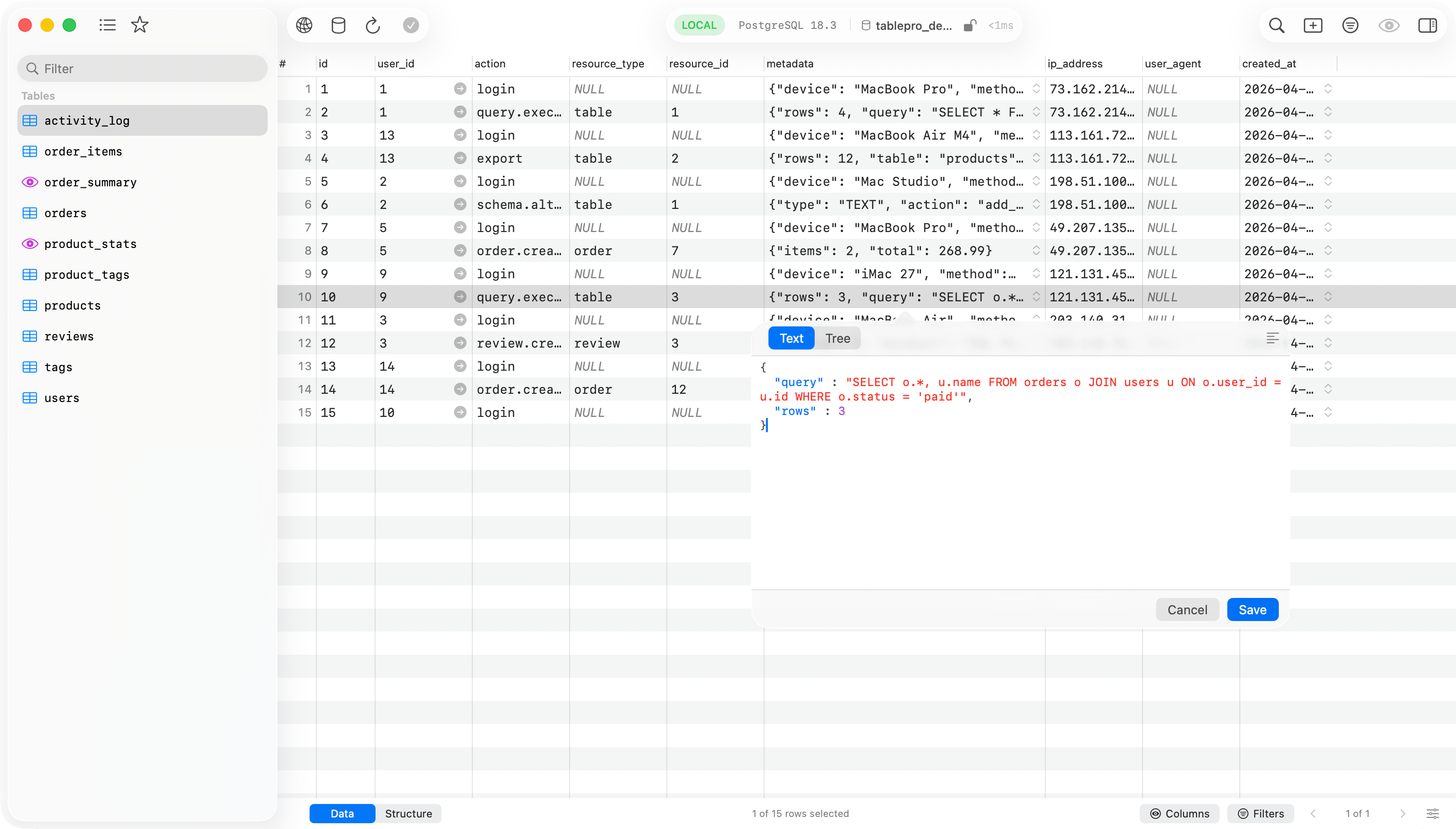
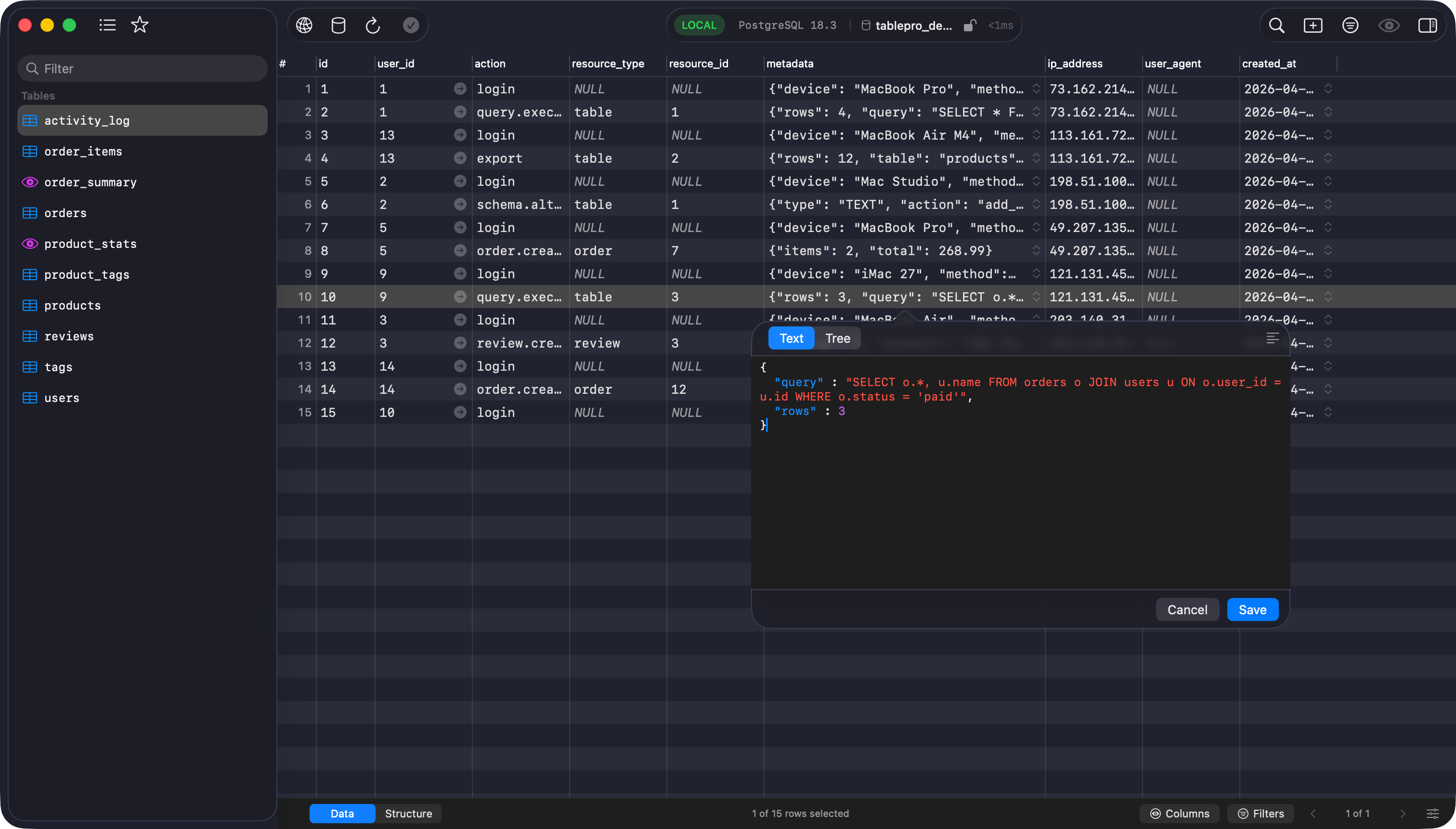
JSON editor popover with Text and Tree modes
Selecting and copying in a tree
Click a row to select it. The arrow keys move the selection,Shift and Cmd extend it, and Cmd+A selects every row. Cmd+C copies the selected values, one per line: a string without its quotes, an object or array as compact JSON. A row inside a selected object or array is already part of that JSON and is not copied a second time.
For part of a value, select its row, drag across the text or double-click a word, then press Cmd+C. Text copies as the row shows it: a long string shortened, a line break written as \n. Copy Value on the right-click menu copies the whole value.
Copy Key and Copy Key Path sit on the same menu. A path reads $.user.emails[0]. A key that is not a plain identifier is quoted, as in $."content-type", the form SQLite, PostgreSQL, MariaDB and DuckDB read in a JSON path.
Escape ends a text selection first, then clears the row selection. Pressed once more, it closes the popover and drops an edit you have not saved.
Links and color swatches
A string that is one wholehttp, https or mailto address is drawn as a link. The first click selects its row. Click the link in a selected row and it opens in your browser or mail app. Space opens the link of a single selected row, the right-click menu has Open Link and Copy Link, and holding the pointer over the link shows the address in full.
Everything else stays text: file: and every other scheme, www.example.com with no scheme, an address inside a longer string or with a space beside it, an address carrying a user name and password, a mailto: with anything after the address, and an address too long for its row that is cut off before the end of its host name, since the part shown could name another site. Copy Value still copies that address whole. An address has to be plain ASCII with the rest percent-escaped, so /wiki/Vi%E1%BB%87t_Nam links and /wiki/Việt_Nam does not.
A string that is a CSS color carries a swatch of that color beside it.
Any 3, 6 or 8 hex digits after
# count, so an order number stored as #404 gets a swatch too. Four-digit hex such as #f80c and color names such as orange get none.
Filtering a tree
The search field above the tree filters keys and values as you type. The PHP serialized tree works the same way.- Matching ignores case and accents, so
cafefindscafé. Full-width and half-width differ:ABCdoes not findABC. - A row matches on its whole value, not the shortened form shown, so a match deep inside a long string counts. A match under a collapsed parent opens its parents, and a key that matches keeps its contents and stays expandable.
- Only text from the document matches. A JSON array position such as
[1], a count such as{2 keys}and the…row are the tree’s own labels, and no filter finds them. - A filter that matches nothing says so, and says separately when the document was cut at 5,000 nodes, since the rows past the cut were never searched.
Arrays of JSON
A PostgreSQLjsonb[] or json[] cell opens on its elements: the list at the top, the selected element in the same Text and Tree viewer below.
Add, remove and reorder elements with the controls under the list. NULL on an element writes a SQL NULL, which is a different value from the JSON null an element can hold: the list shows the first as NULL and the second as null. Edit as Text switches to the raw {…} literal.
Reading an element does not change it. Only an element whose JSON you alter is rewritten, and it is written back compact, so a json[] column keeps the exact text it stored for every element you left alone.
PHP serialized viewer
Set Display As > PHP Serialized on a text column, then double-click or pressEnter. The viewer is read-only: PHP serialized values round-trip through PHP itself.
Tree mode is the JSON tree with PHP’s types: it filters, selects, copies and draws links and color swatches the same way, with type badges on the nodes (str, int, arr, obj, ser, ref) and visibility badges on object members (protected, private (ClassName)). A custom-serialized class (the C: token) is one opaque leaf that copies as its whole payload, and a reference (r:/R:) shows as → #N and is not followed. Raw mode shows the original string with text selection.
An array or object row copies as its summary, such as [2 items], not as its contents, so each row you select inside it copies its own value after the summary. Copy the serialized text from Raw mode instead.
Blob and hex
A blob cell renders in the grid as compact hex (0x48656C…), unless its column reads as text. Click the chevron or double-click for the popover: a classic hex dump with offset, byte columns, and ASCII, plus an editable hex field under it on an editable table. That field takes spaced or continuous hex, with or without a 0x prefix, and invalid hex disables Save.
Bytes that read as an image open on the picture instead, with Hex the second segment. The image viewer covers that.
Image viewer
A cell whose content is an image opens on the drawing, with its stored form one segment away: Hex for a binary column, Source for SVG markup in a text column. The source stays editable wherever the cell is, and Save commits it through the same change tracking queue as any other edit. Detection reads the value, not the column, since the same PNG turns up inBLOB, BYTEA and VARBINARY, and SVG arrives as often in a text column as a binary one. PNG, JPEG, JPEG 2000, GIF, TIFF, BMP, ICO, WebP, HEIC, HEIF and AVIF are identified from their header; SVG from its root element, behind any byte order mark, XML declaration, comment or doctype. A PDF, a Photoshop file and a camera raw file are left as hex, since a database client that opened them as “the image in this cell” would be guessing. Display As > Raw Value on the column turns detection off.
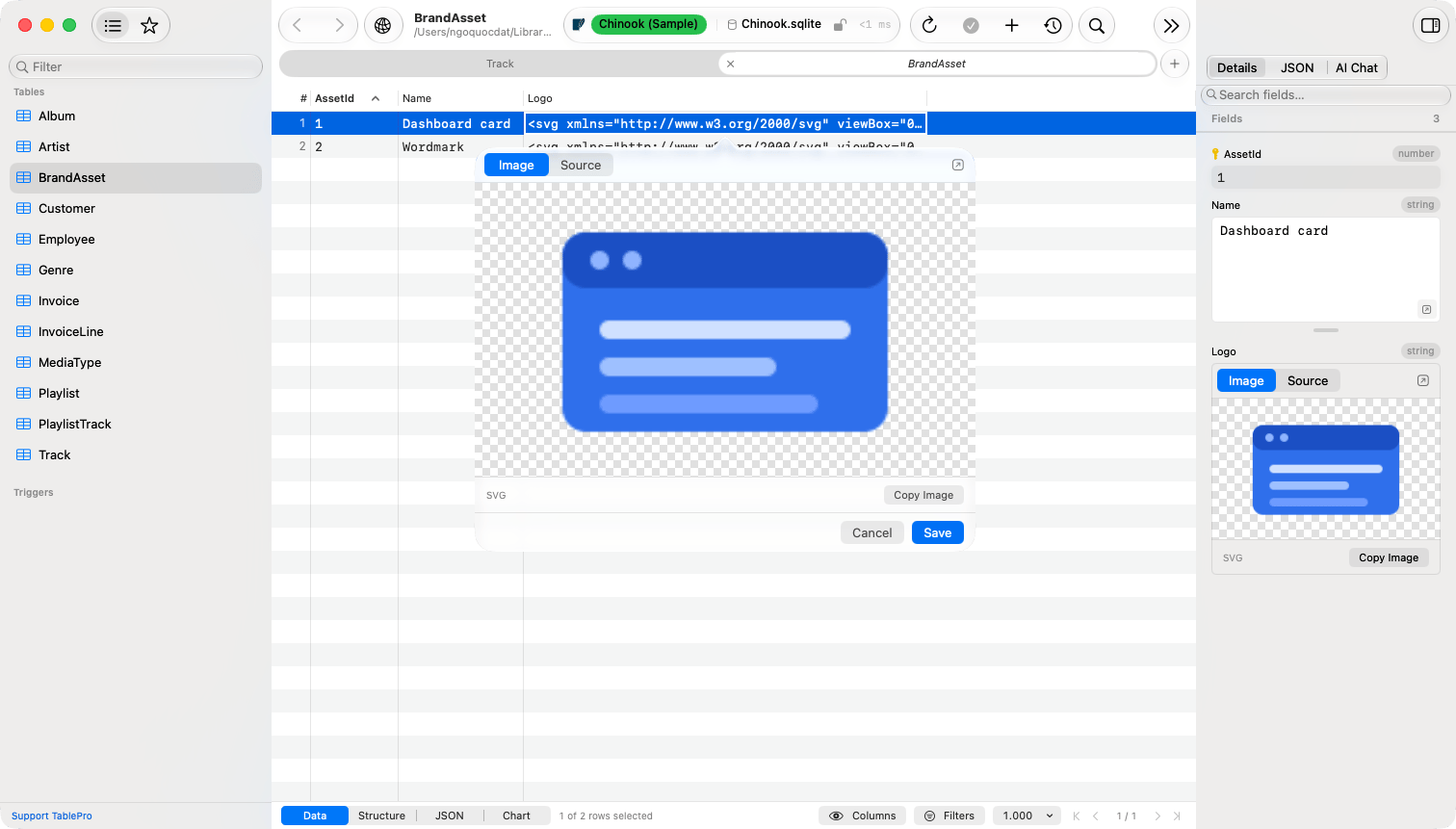
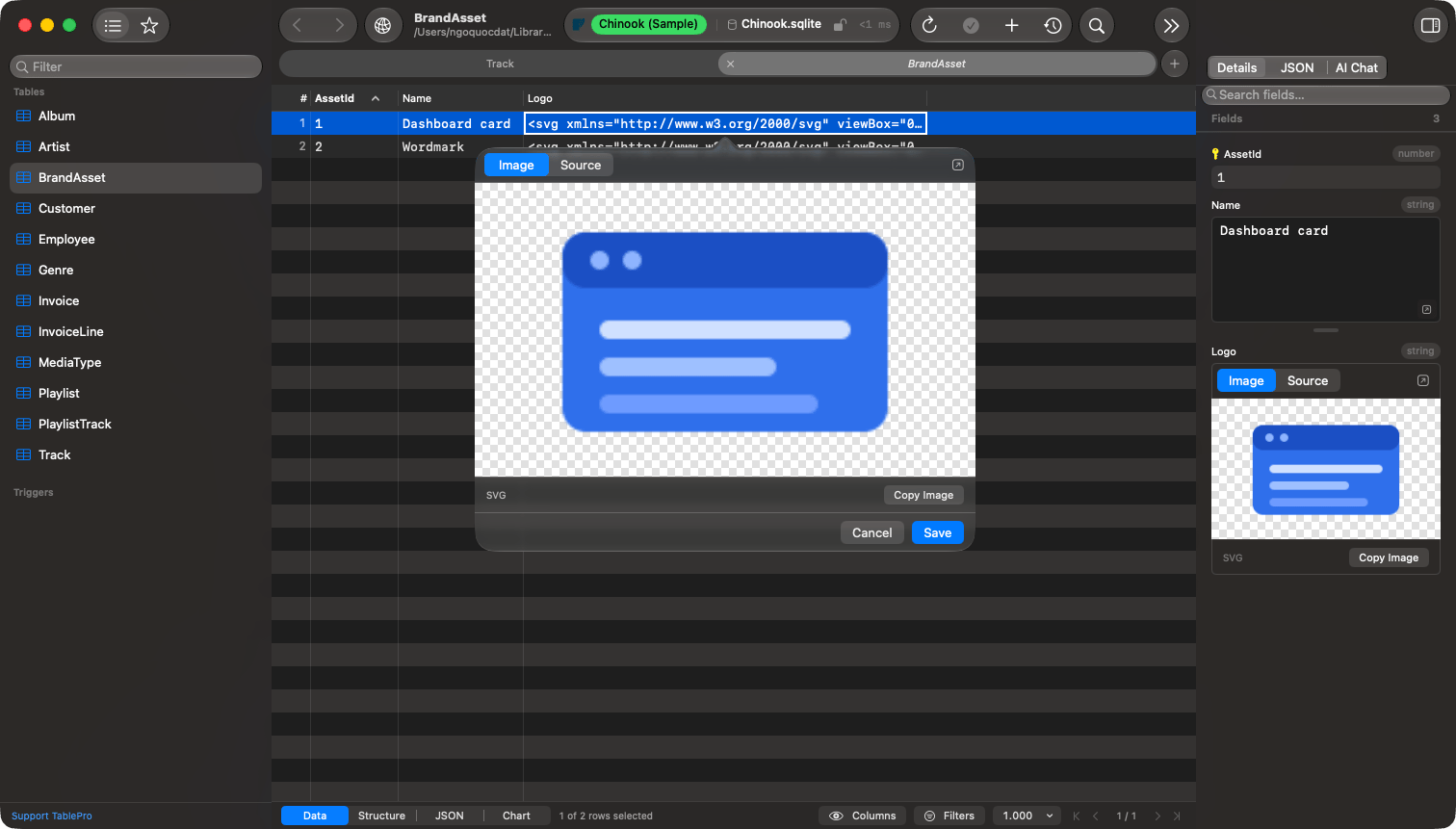
One value, drawn in the popover and again in the row inspector
<image href="https://…">, an @import, an external entity and a <script> all draw as nothing. A document that cannot be drawn within three seconds is abandoned and the pane says so.
Limits
A value that refuses to open in one mode still opens in another.Row details inspector
View > Show Inspector (Cmd+Option+I), or the toolbar button at the trailing end, opens it. The table and which row of how many is selected sit under the pane’s header, then the fields. Each field carries its column name and type on one line, with the value on the line beneath, so the value gets the row’s full width however long the column name is. A field’s editor follows its content, with no Display As step, and the first match wins.

Row details inspector with per-field editors
Cmd+S. The length test reads the stored value, so a long value pasted into a single-line field stays on one line until you save and reselect the row.
The hex editor shows the first 10 KB of a blob. Past that it reads Truncated, read only and refuses edits, rather than saving back the part it could show.
The text box, the JSON editor and the map each carry a drag handle under them, with separate remembered heights that survive a relaunch.
Open in Window detaches a JSON, PHP or text value into its own resizable window; on an editable row, edits there join the same pending changes as the field. An image and a map detach read-only. The expand button on a JSON, PHP, long text or geometry field grows it to fill the inspector’s height with the other fields still listed around it; click it again to shrink it back. Binary and image fields draw at a fixed height and carry no expand button, and neither does a geometry field stored as bytes, whose map still takes the drag handle.
Every field carries a menu at its trailing edge, and right-clicking the field opens the same one. Set NULL, Set DEFAULT, Set EMPTY and SQL Functions need an editable field; Ctrl+Option+N and Ctrl+Option+D reach the first two from the keyboard. Copy Value is always there, and a read-only field keeps its text selectable.
With no row selected, the inspector describes the table the tab is bound to: data, index and total size, row count, average row size, engine, collation, and creation and update dates, as far as the database reports them. A tab with no table of its own, such as a query, leaves it empty. On a Structure tab it follows the structure grid and names the selected column.
Geometry fields
Select a row with a spatial column and its field opens on a map of that one value: a marker for a point, the path of a line, a polygon with its holes, and every member of a multi-part value or a collection. GeoJSON in a JSON column gets the same field. Text, the other segment, holds the stored value in the editor it would otherwise have: the text box for WKT, the JSON editor for GeoJSON, the hex editor for WKB bytes. Edit it there and Map draws the edited value before any save. Typing never switches the segment. The segment picked last is the one the next geometry field opens on, remembered on this Mac. Drag the map to pan it; pinch, double-click or Cmd + scroll to zoom. A plain scroll moves the inspector. Fit to Geometry frames the value again, and Open in Window on the Map segment opens the map alone in a resizable window. The caption under the map names the geometry type and its SRID, adds the latitude and longitude of a single point, and counts any parts left out because the map could not place them. A value with nothing to draw opens on Text, and Map says why in a sentence: NULL, an empty geometry, an SRID the map does not place, a curve type, coordinates out of range for their SRID, a shape wholly past 85 degrees of latitude, or several selected rows that hold different values. Map mode lists the formats and SRIDs the map reads. A value in none of those formats keeps the editor it had, with no Map segment: a text editor for text, the hex editor for bytes.Row as JSON
Right-click a row and choose Show Row as JSON, or open the inspector and pick JSON from the ellipsis menu at the trailing end of the pane’s header. The row prints as one JSON object, keys in the result’s own column order: numbers and booleans unquoted, NULL asnull, binary as hex. Like Fields beside it, it prints every column the result carries, including any hidden in the grid. A JSON column, and a text column holding a document, arrive as nested keys instead of as a string.
The pair is offered for a data-grid row and for nothing else. A Structure tab’s column definition has no JSON form, and neither does the table information the inspector shows with no row selected, so the choice is not in the menu there.
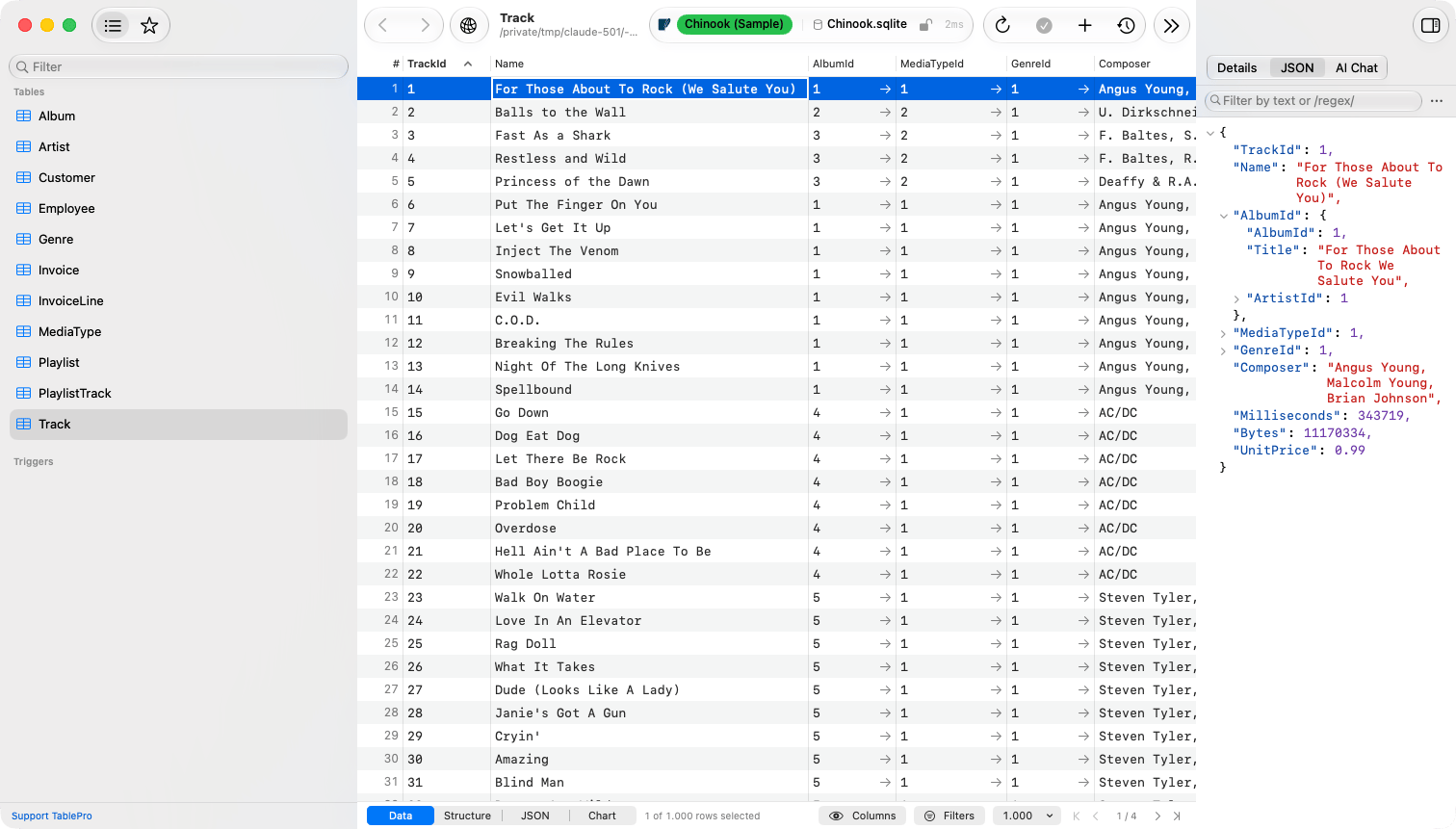
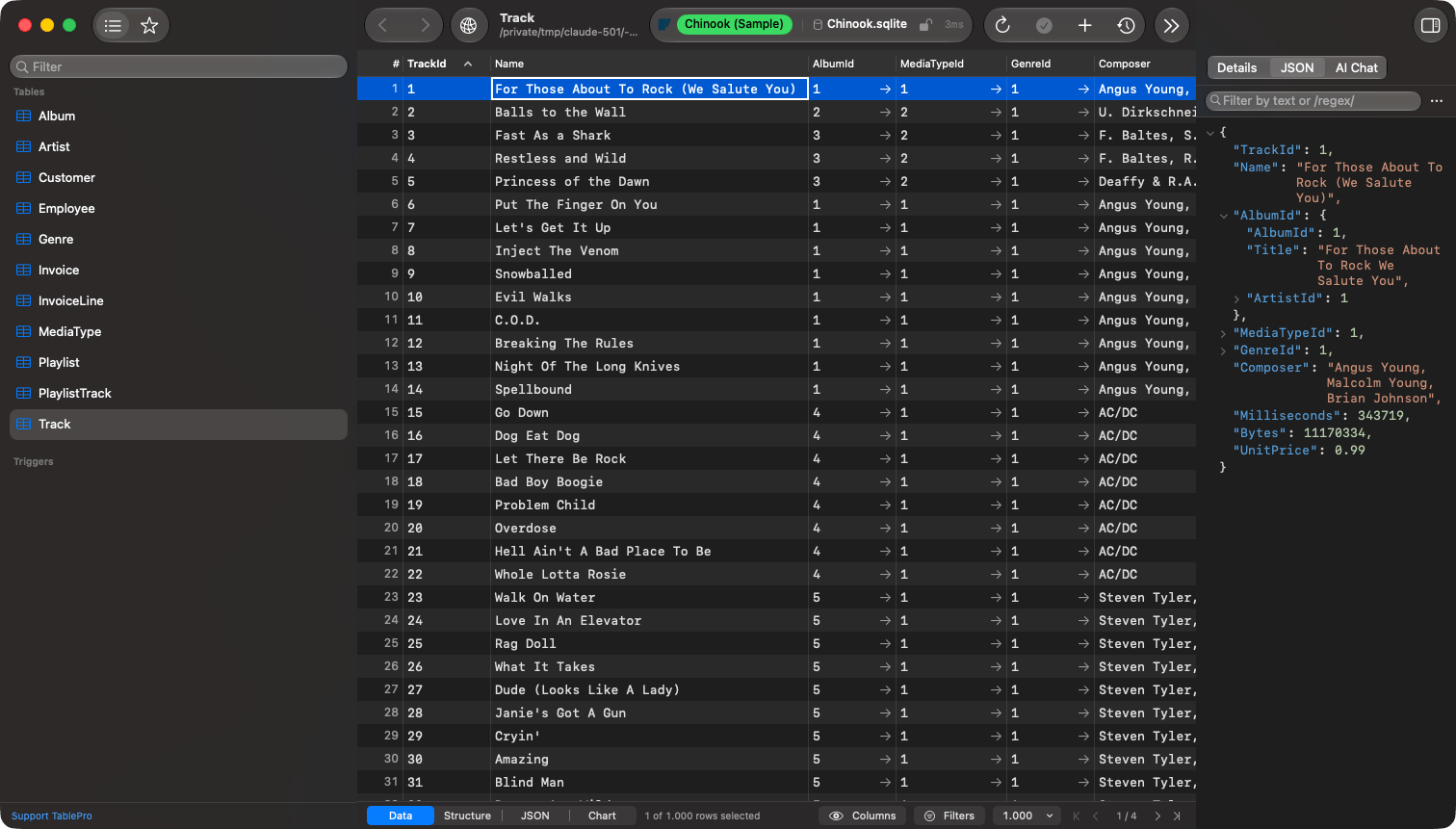
A Track row as JSON, with its AlbumId key opened onto the Album row
/^rental/. It matches keys and values, keeps the keys that lead to a match along with everything under a key that matches, and opens what was collapsed. Escape clears it. An invalid expression outlines the field in red and filters nothing.
Under a filter, the disclosure controls close and reopen what the filter kept. A foreign key that matches only by its value has no control until you clear the filter.
A string value carries the same links and color swatches as the tree. A line here has no selection, so a link opens on the first click.
Editing stays on Fields. Right-click the empty part of a line, before its text or past its end, for Copy Value and Copy Key; a link adds Open Link and Copy Link, and a foreign key line adds Open for the referenced table, filtered to that row. A right-click on the text itself shows the text menu instead.
Caps: a document stored as more than 100,000 characters prints as a string rather than as nested keys. The JSON tree has the same cap, counted without indentation. A binary value shows its first 64 bytes followed by an ellipsis, the same cap the grid’s own Copy applies.
For whole-row JSON, switch the result to JSON mode with the switcher at the leading edge of the status bar, or from View > Result View. It shows what the grid shows, in the same order, minus hidden columns and rows marked for deletion, which the count line reports separately. Select rows in Data mode first to narrow it, then click Copy JSON. Its Tree mode is the cell viewer’s tree, where Cmd+A then Cmd+C copies one row object per line.